

Too Long? Read This First
- Use WhatsApp Business API to send bulk broadcasts at scale.
- Use the WhatsApp Business app only for small lists of up to 256 saved contacts.
- Always get an opt-in before messaging customers.
- Personalise, segment, and balance updates with promotions.
- Avoid spammy tools, cold messages, and ignoring replies.
- Follow the WhatsApp Business Messaging Policy to stay safe and compliant.
Sending bulk messages on WhatsApp without getting blocked comes down to three rules: use an official channel, message only people who opted in, and send Meta-approved templates. Businesses that break these rules risk having their number restricted or banned.
For a small list, you can send a WhatsApp Business bulk message from the WhatsApp Business app to up to 256 saved contacts per broadcast list. For larger lists, Wati's broadcast campaigns run on the WhatsApp Business API and scale to thousands of contacts a day, with scheduling, personalization, and analytics.
This guide explains how bulk messaging works, why unofficial tools put your number at risk, and how to send your first campaign with Wati.
What is Bulk Messaging on WhatsApp?
Bulk messaging on WhatsApp means sending the same message, or a personalized version of it, to many customers at once. Each recipient gets the message in a private one-to-one chat, so no one can see who else received it.
You can send a bulk message in two official ways: through broadcasts in the WhatsApp Business app, or through the WhatsApp Business API using Meta-approved message templates. Unofficial bulk sender tools also exist, but they break WhatsApp's Terms of Service and put your number at risk of getting banned.
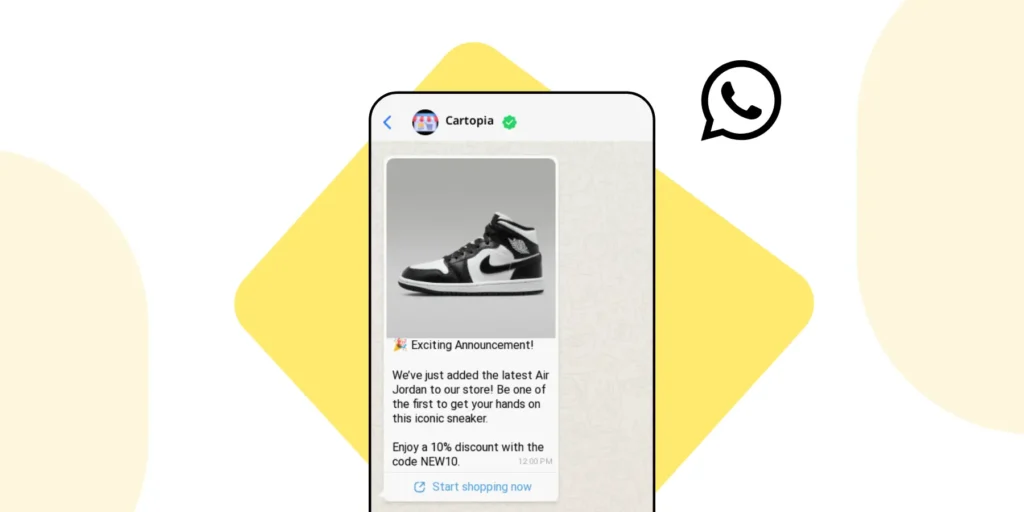
Businesses use bulk messages for order updates, offers, appointment reminders, and announcements. What separates good bulk messaging from bad is consent.
Good bulk messaging | Order updates, event reminders, or offers sent to people who asked to hear from you. |
Bad bulk messaging | Copy-pasting promotions to random numbers or using bots that blast thousands of texts. |
Unsolicited bulk messaging increases the risk of blocks, reports, and restrictions.
Bulk messages and WhatsApp groups both reach many people, but they work differently. Here is how they compare:
Bulk message (broadcast) | WhatsApp group | |
|---|---|---|
Who sees other recipients | No one | Every member |
Where replies go | Only to your business, in a private chat | To the whole group |
Best for | Offers, updates, and reminders to customers | Community discussion |
Why does WhatsApp Block Accounts?
WhatsApp restricts or bans accounts when their messaging looks like spam, judged by how recipients react and which tools send the messages.
The most common triggers are:
- Sending unsolicited promotions
- Sending through unofficial tools or modified WhatsApp apps
- Too many people blocking or reporting you
- Blasting identical messages from the app or an unofficial tool
WhatsApp tracks how people respond to your messages. On the API, frequent blocks and reports lower your quality rating, which can pause templates or reduce how many people you can message.
On the WhatsApp Business app, a restricted account can still reply to existing chats but cannot start new ones until the restriction lifts. A banned account cannot use WhatsApp at all until a review succeeds.
What Are The Safe Ways to Send Bulk Messages?
There are two official ways to send bulk messages on WhatsApp: the WhatsApp Business app for small lists and the WhatsApp Business API for large ones.
The right choice depends on how many customers you message and how much control you need over each campaign.
For example: A local business may use broadcast lists for a few hundred regular customers, while a larger business can use the WhatsApp Business API for campaigns at scale.
1. WhatsApp Business App (Broadcast Lists)
The WhatsApp Business app lets you send one message to up to 256 contacts per broadcast list. Only contacts who have saved your number receive it.
Standard broadcast lists suit small businesses messaging regular customers, but they offer no templates, scheduling, or campaign analytics. In some countries, the app also offers paid business broadcasts, charged per recipient based on the recipient's country code.
How to send a WhatsApp Business bulk message from the app?
- Open the WhatsApp Business app and go to the Chats tab.
- Tap the three-dot menu in the top right corner and select New broadcast.
- Choose up to 256 contacts, then tap the green tick to create the list.
- Type your message, add media if needed, and tap Send.
On iPhone, go to Chats, tap Broadcast Lists, and then tap New List. Menu labels can differ by app version and region.
2. WhatsApp Business API (Best for Scale)
The WhatsApp Business API is the official way to send bulk messages at scale while staying compliant.
Businesses access it through a Meta Business Solution Provider (BSP) such as Wati, which provides the dashboard to build, send, and track campaigns.
With Wati, you can:
- Send campaigns to thousands of opted-in users
- Use WhatsApp-approved templates
- Track delivery, reads, and responses
- Manage customer replies in a shared Team Inbox
- Stay compliant and avoid bans
Meta limits how many unique users you can message outside a customer service window in a moving 24-hour period. New business portfolios start at 250. You can raise the limit to 2,000 by completing one of Meta's scaling paths, such as sending 2,000 delivered messages to unique users within 30 days using high-quality templates.
After that, Meta raises the limit automatically when your quality holds. The limit applies to your whole business portfolio and is shared by all its phone numbers.
When a customer replies, a 24-hour customer service window opens, and you can send free-form messages inside it. After the window closes, you need an approved template to message that customer again.
Already use the WhatsApp Business app? With coexistence, you can connect the same number to Wati, keep the app for daily chats, and send bulk campaigns from Wati.
WhatsApp Business App vs. WhatsApp Business API for Bulk Messaging
The WhatsApp Business app and the WhatsApp Business API suit different business sizes and goals.
Here is how they compare for bulk messaging:
Feature | WhatsApp Business App (broadcast lists) | WhatsApp Business API (via Wati) |
|---|---|---|
Recipients per send | Up to 256 per broadcast list | Starts at 250 unique users per 24 hours and rises as limits scale |
Who receives it | Only contacts who saved your number | Any opted-in user; no need to save numbers |
Message format | Free text and media | Meta-approved templates with variables, buttons, and media |
Scheduling | Not with standard broadcast lists | Yes |
Analytics | Read receipts only | Delivery, read, and reply reports |
Cost | Broadcast lists are free; business broadcasts are paid per recipient where available | Meta fee per delivered template message, plus your provider's plan |
Account risk | Rises quickly with spam reports | Low when you follow opt-in and template rules |
Best for | Small shops messaging regular customers | Growing businesses sending campaigns at scale |
Use the app for a few hundred saved contacts. Use the API when you need scale, templates, and reporting.
How to Send Bulk WhatsApp Messages with Wati
To send bulk WhatsApp messages with Wati, connect your number to the WhatsApp Business API, import your contacts, create an approved template, and then schedule and track your campaign. You can do all of this from one Wati dashboard.
Before you start, have these ready:
- A phone number that can receive an SMS or voice call for verification.
- A Meta business portfolio for your company.
- A contact list of customers who opted in to WhatsApp messages.
Meta business verification is not required to start, but it lets you register more phone numbers. New business portfolios can register up to two numbers, while verified businesses can register up to 20.
Step 1: Sign Up and Connect Your WhatsApp Business API
- Get started with Wati in just a few clicks.
- Wati is an official WhatsApp Business Solution Provider (BSP), so your account stays safe and compliant.
Watch this video on how to set up your WhatsApp Business API account with Wati.
With the WhatsApp Business API, you can safely send bulk messages on WhatsApp to thousands of opt-in users.
You can use approved templates and track results without worrying about getting blocked.
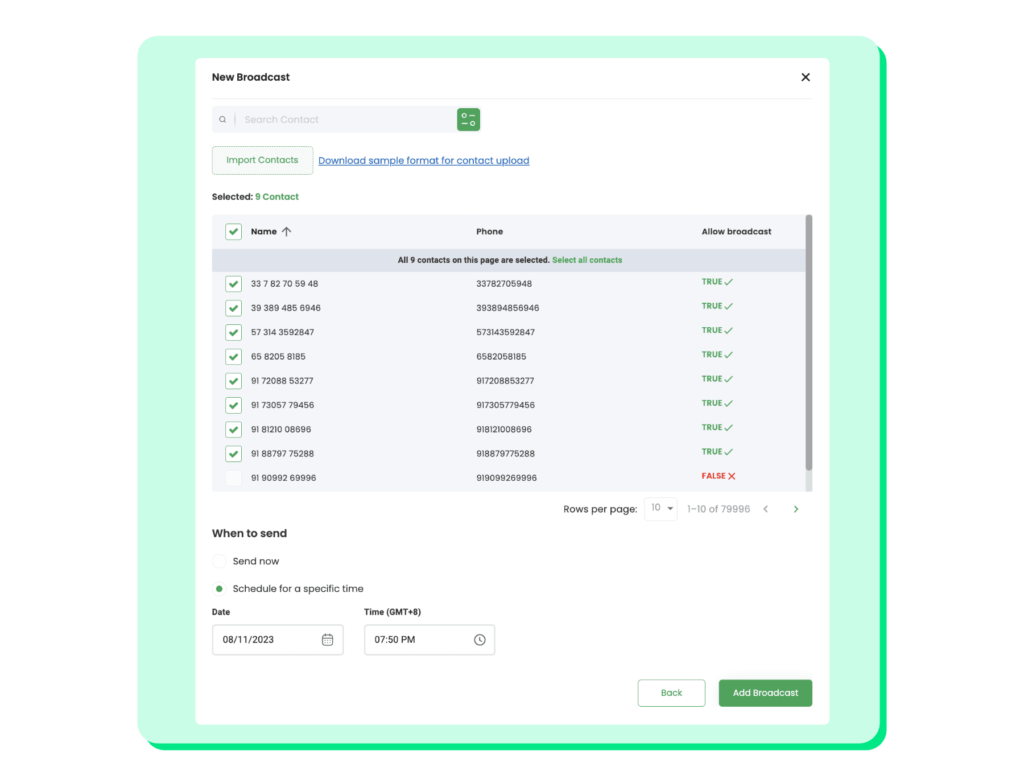
Step 2: Import Your Contact List
- Upload a CSV file with customer details.
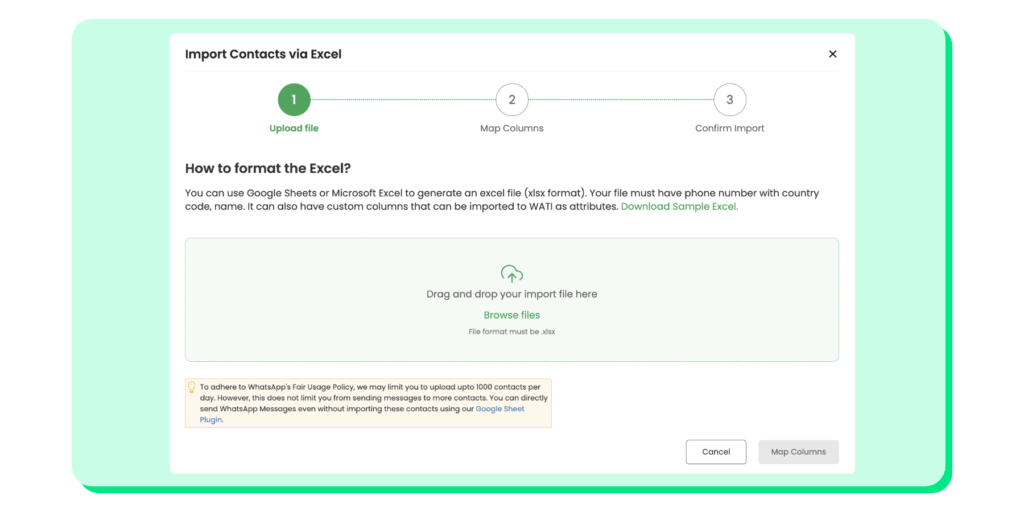
- Wati automatically cleans and organises your list, so you avoid duplicate or invalid numbers.
Step 3: Create Your Message Template
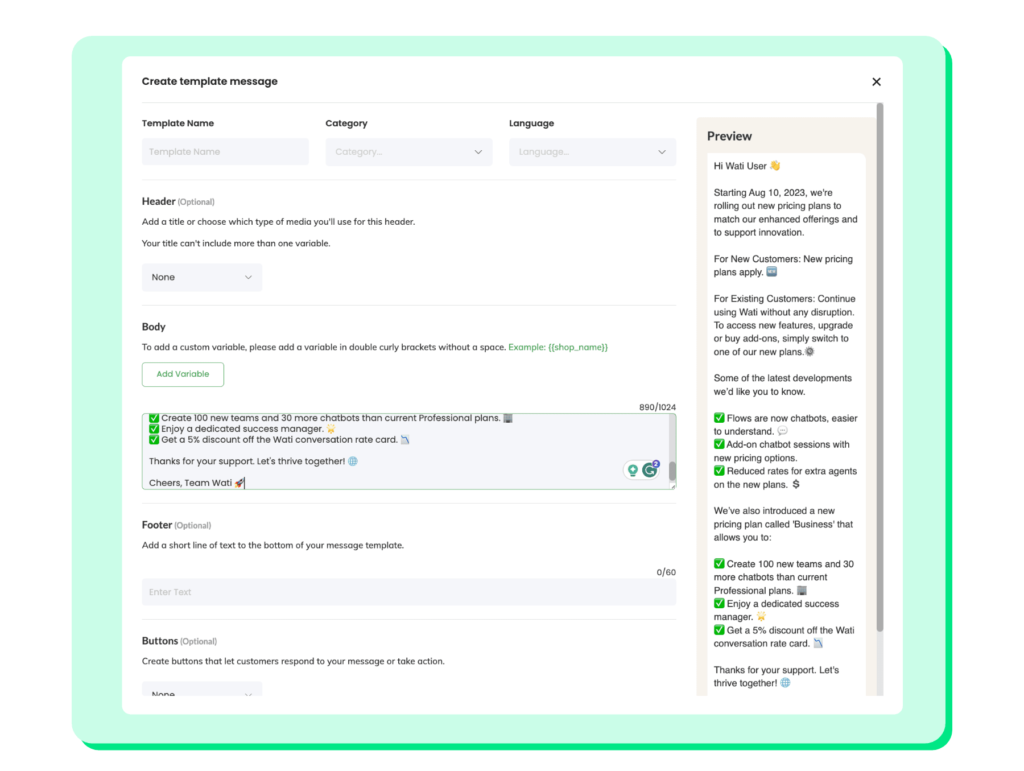
- You can make your own template message or pick from Wati’s approved templates for things like alerts, offers, or updates.
- Add text, emojis, images, buttons, and even links.
- Add variables to personalize messages, such as a customer's name, order ID, or appointment date by using placeholders like {name} and {date}.
Every template belongs to one of three categories, and the category affects the price:
- Marketing: offers, product launches, and cart reminders.
- Utility: order updates, delivery alerts, and account notices.
- Authentication: one-time passcodes.
In Meta's template format, variables appear as numbered placeholders such as {{1}} and {{2}}.
When you send, each placeholder is replaced with data from your contact list, so "Hi {{1}}, your order has shipped" reaches Priya as "Hi Priya, your order has shipped".
Step 4: Schedule and Send
- Send to a small test segment first, check how the template looks on Android and iPhone, and then send to the full list.
- Send instantly or schedule campaigns for later (perfect for time zones).
- Segment your list (new customers, repeat buyers, inactive users) to make your messages relevant.
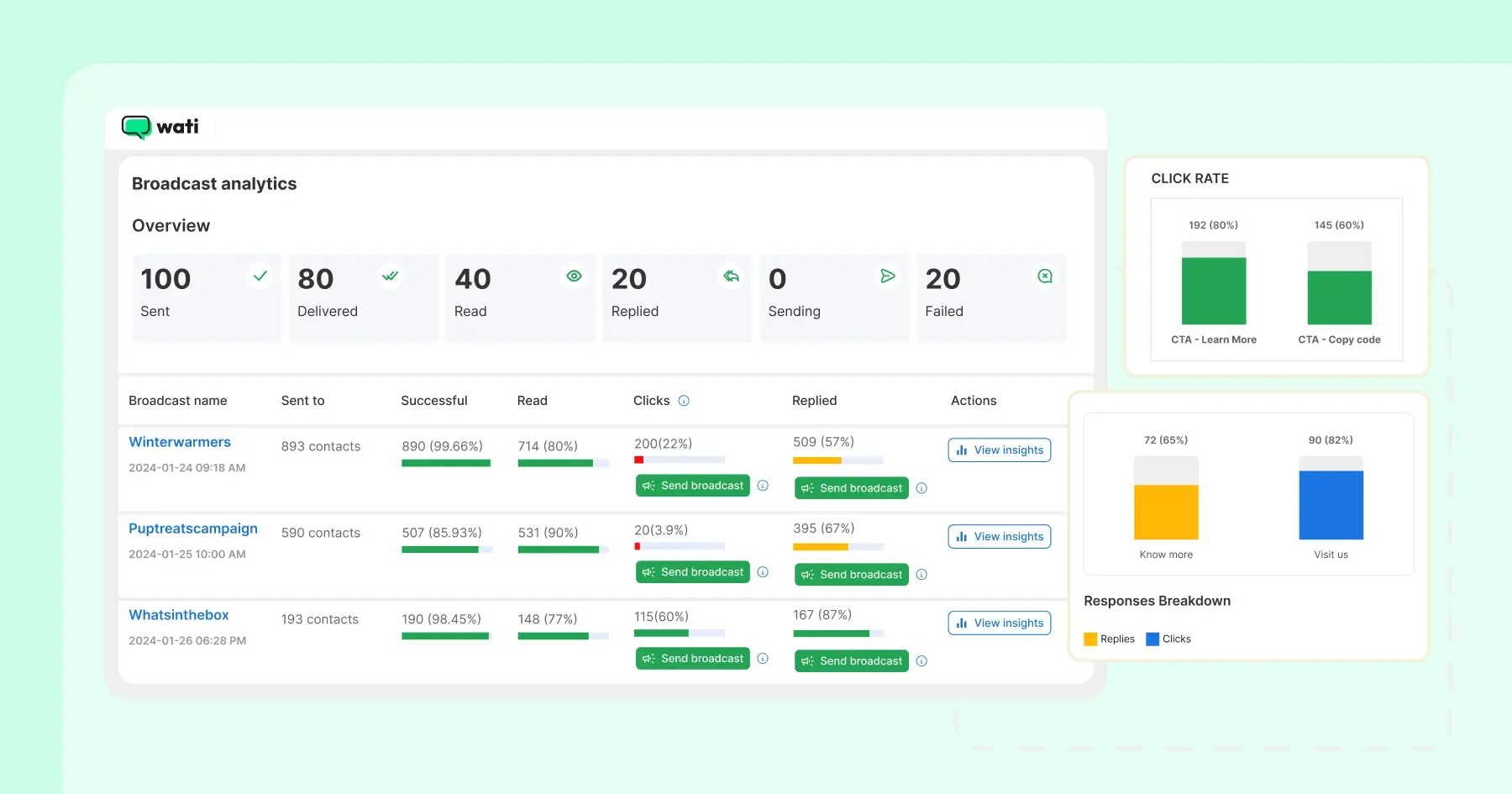
Step 5: Track Performance in Real Time
- Monitor exactly how many people received, read, and replied to your campaign.
- Use analytics to improve future messages.
- Integrate with your support team so replies turn into conversations, not missed opportunities.
Best Practices for Sending Bulk WhatsApp Messages
Customers block business messages they didn't ask for, can't relate to, or can't turn off.
These seven practices keep your bulk WhatsApp campaigns clear of all three, so your quality rating and your number stay protected.
1. Always Get Customer Opt-in
- Never message people out of the blue.
- Collect consent through your website, checkout pages, QR codes, or even in-store forms.
- WhatsApp values consent, and so do your customers.
Example: “Tick this box to get updates on WhatsApp.”
Here are 10 ways you can get WhatsApp opt-ins from your customers
2. Use WhatsApp-Approved Message Templates
- Templates go through Meta’s review system, which means they’re less likely to get blocked.
- Keep templates professional and useful (updates, alerts, reminders) rather than spammy.
- Save sales-heavy messages for when customers engage first.
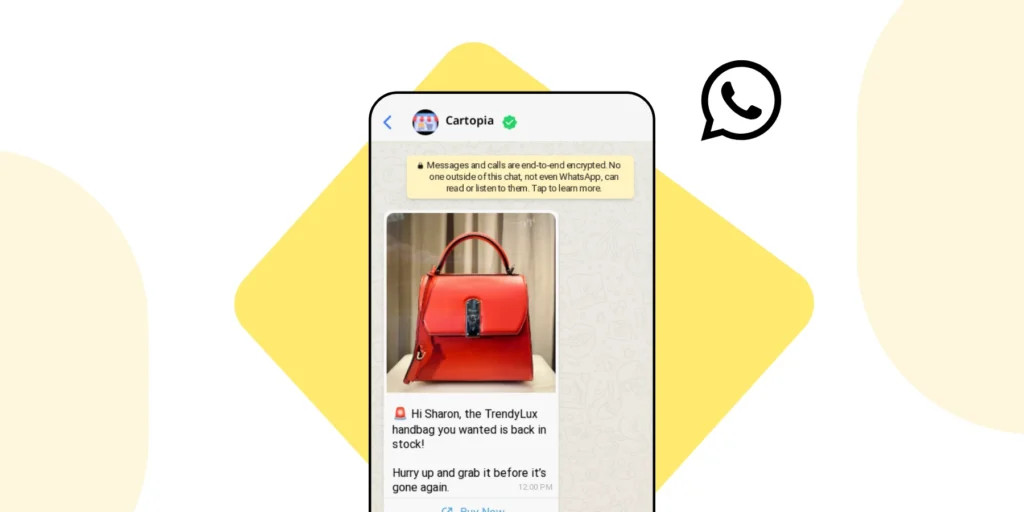
3. Personalize Every Message
- Use variables like {first_name}, {order_id}, and {date} to make bulk campaigns feel like one-to-one chats.
Example: “Hi Priya, your appointment is confirmed for 3 PM tomorrow.”
4. Send at an Optimal Frequency
- Don’t blast 20,000 messages in one shot. Schedule campaigns across across series of days.
- Respect time zones. No 2 AM promotions.
- Stick to 2–3 bulk campaigns per week unless it’s urgent (like delivery updates).
- Check your quality rating in WhatsApp Manager before each campaign. If it drops, pause marketing sends and review which messages people are blocking or reporting.
5. Segment Your Audience
- Not everyone wants the same message.
- Segment your audience: new users, loyal customers, cart abandoners, inactive users.
- The more relevant your message, the less likely you’ll get reported.
6. Provide an Opt-Out Option
- Always give people the option to unsubscribe.
- A simple “Reply STOP to unsubscribe” keeps you compliant and builds trust.
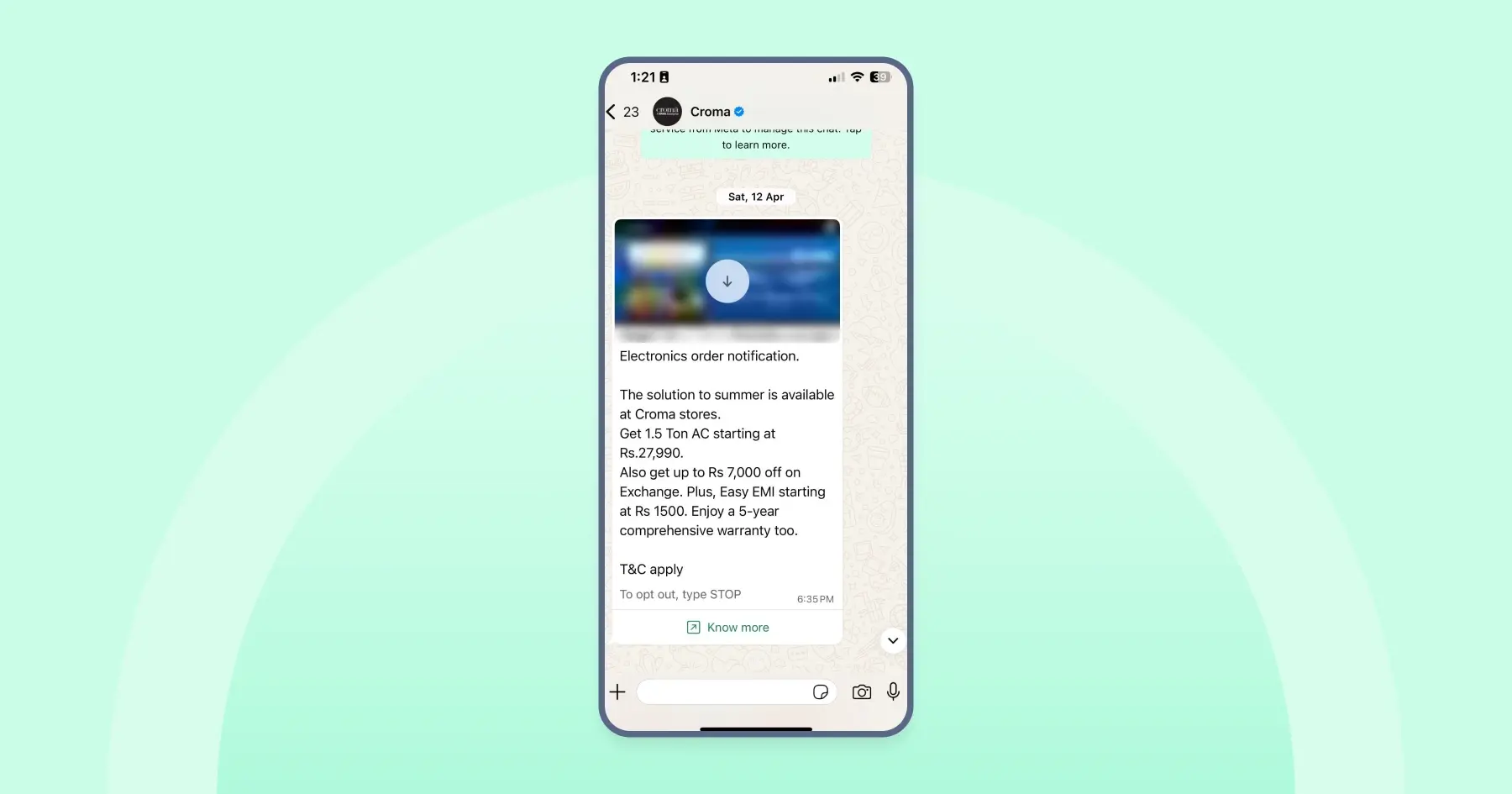
WhatsApp blocks accounts that send spam, use unofficial tools, or ignore user consent.
You can read more in the official WhatsApp Business Messaging Policy.
7. Balance Informational and Promotional Content
- Don’t just oversell. Balance promotions with helpful updates, reminders, or tips.
- Example: Combine a shipping update with a small cross-sell.
Instead of: “Buy now at 20% off.” Try: “Your package will arrive today. By the way, here’s 20% off accessories if you need them.”
One of our customers discovered that when they started sending bulk messages on WhatsApp with Wati, their campaigns reached 5x more audience than email.
Bulk WhatsApp Message Examples That Stay Compliant
These examples show how to structure WhatsApp messages for different use cases. For marketing messages, use opted-in contacts and include a clear way to opt out.
1. E-commerce
Flash sale: Send a time-limited offer to your opted-in list.
Hi {name}, your weekend just got better. Get 20% off sitewide till midnight! 🛒 Shop here: {link} Reply STOP to opt out of offers. |
Abandoned cart reminder: Nudge shoppers who added items but did not check out.
Hey {name}, You left {product_name} in your cart. Check out now and get free shipping! Reply STOP to opt out of offers. |
2. Healthcare
Appointment reminder: Reduce no-shows with a reminder the patient can confirm.
Hi {name}, Your appointment with Dr. Sharma is tomorrow at {time}. Reply YES to confirm. |
3. Education
Class announcement (Utility): Tell parents or students about schedule changes.
Reminder: The Parent-Teacher Meeting for Grade 1 is on Saturday at 11 AM. |
Common Mistakes That Get Your WhatsApp Number Blocked or Banned
Most WhatsApp bans start with a small shortcut that looks harmless at the time. Here are four common ones, what they lead to, and what to do instead.
1. Messaging Bought or Outdated Contact Lists
Bought lists contain people who never agreed to hear from you, so many of them block or report your messages. Old lists cause the same problem, because customers who have forgotten who you are react to your message like spam.
What not to do | Buying a database of phone numbers, or uploading a customer list from several years ago. |
Better approach | Build an opt-in list through your website, checkout, or QR codes, and remove contacts who have not engaged in months. |
2. Working Around the 256-Contact Limit
When a broadcast list is not enough, some businesses copy-paste the same message into hundreds of chats, or split contacts across many lists and send them all at once. On the WhatsApp Business app, sending identical messages at that volume looks like automated bulk messaging and can get your account restricted.
What not to do | Pasting one promotion into hundreds of individual chats, or sending ten broadcast lists back to back. |
Better approach | Move to the WhatsApp Business API once your list outgrows the app, so every campaign goes out within Meta's rules. |
3. Ignoring Quality Rating Drops
On the WhatsApp Business API, Meta lowers your quality rating when recipients block or report your messages. A low rating can pause your templates and limit how many people you can message.
What not to do | Sending the next campaign on schedule even though blocks rose after the last one. |
Better approach | Check your quality rating in WhatsApp Manager before every campaign. If it drops, pause marketing sends and fix the messages people are blocking or reporting. |
4. Ignoring Customer Replies
A bulk message often prompts questions, and customers who get no answer lose trust in your business. Many of them block you the next time a campaign arrives.
What not to do | Sending campaigns but never responding to questions. |
Better approach | Use Wati's shared inbox to manage replies, assign them to your team, or set up chatbots for quick answers. |
Checklist Before You Send a Bulk WhatsApp Campaign
- Every contact on the list opted in.
- Every phone number includes the country code.
- The template is approved and in the right category.
- Every variable maps to a filled column in your contact list.
- The message includes a clear way to opt out.
- Your current messaging limit covers the size of the list.
- Your quality rating is healthy.
- You sent a test to a small segment first.
Send Bulk WhatsApp Messages Without Putting Your Number at Risk
Your WhatsApp number holds every customer chat, order update, and campaign you've built, so keeping it safe matters more than any single send.
When you send the right way, your number stays active, your messaging limit keeps growing, and customers open your messages instead of blocking them.
Book a demo with Wati to send your first bulk campaign safely.
Frequently asked questions
1. How many bulk messages can I send per day on WhatsApp?
On the WhatsApp Business API, new business portfolios can message 250 unique users per moving 24-hour period outside a customer service window. The limit rises to 2,000 after you complete a Meta scaling path, then increases automatically while your message quality stays high. In the WhatsApp Business app, each broadcast list holds up to 256 contacts.
2. Can I send a WhatsApp Business bulk message without the API?
Yes. The WhatsApp Business app lets you send one message to up to 256 contacts per broadcast list, but only contacts who saved your number receive it. For larger lists, or for contacts who have not saved your number, use the WhatsApp Business API.
3. Can I send messages without saving numbers?
Yes, with the WhatsApp Business API. Recipients do not need to save your number, but they must have opted in to receive messages from you.
4. Is bulk messaging on WhatsApp allowed?
Yes, if recipients have opted in and you use an official channel. Use the WhatsApp Business app for small broadcast lists, or the WhatsApp Business API with approved templates for larger lists. WhatsApp prohibits unauthorized automated or bulk messaging through unofficial tools.
5. Can I send WhatsApp bulk messages without getting blocked?
The safest and most reliable way is through an official WhatsApp Business Solution Provider. This ensures compliance, better delivery rates, and message tracking.
6. How do I stop my messages from being marked as spam?
Keep them relevant, personalised, and consent-based. Also, avoid overly pushy or “spammy” words like BUY NOW, FREE, or CLICK FAST.
7. Can I send bulk WhatsApp messages from an Excel sheet?
Yes. Save your list as a CSV file with phone numbers in international format, including the country code, and add a column for each variable, such as first name. Then import the file into Wati and choose those columns when you set up the broadcast.
8. Can I send bulk WhatsApp messages for free?
Only in small batches. Broadcast lists in the WhatsApp Business app are free, but each list holds up to 256 contacts, and only people who saved your number receive the message. Sending at scale through the WhatsApp Business API costs a Meta fee per delivered template message, plus your provider's plan.
Related posts
- Instagram Comment Automation: How It Works and How to Set It Up in Wati
Instagram comment automation auto-replies to comments and DMs commenters within seconds via Meta's API. Covers strategy, use cases, and Wati setup.
- Shared Team Inbox for Instagram: A Buyer’s Checklist for 2026
Use this fastest checklist to evaluate any shared team inbox for Instagram, which covers DMs, comments, automation, and multi-channel support.
- How to Set Up a TikTok Business Account: Step-by-Step Guide
Set up a TikTok Business Account step by step: switch from personal, pick a category, add your profile, and unlock ads and analytics.
- TikTok for Business: How to Set Up, Market, Advertise & Grow (2026)
Learn how to use TikTok for Business to build your brand, create content, run ads, manage customer messages, and turn views into growth.